
How to Structure a Knowledge Base? Expert Tips on Organizing a Huge KB
Maryna Paryvai · · 11 minutes read

Did you know that over 80% of customers try to solve problems on their own using self-service resources before contacting support?
This means you can reduce the volume of support requests by up to five times if you invest in a well-structured, robust and practical knowledge base that enables customers to find answers on their own.
Keeping a knowledge base organized and up-to-date is a breeze when you only have a few articles to manage. But, maintaining a massive knowledge base where new posts are added every day can be a real challenge.
The good news is you don’t have to start from scratch. This article will provide best practices on how to structure a knowledge base, even a huge one, with maximum efficiency.
Read on to learn how you can create effective self-service resources and level up your knowledge base game.
How to Create a Knowledge Base? – Main Guidelines
Large knowledge bases are typically managed by more than one person. That’s why it’s crucial to establish clear editorial guidelines for seamless collaboration.
Aligning on the content strategy and the production process helps teams streamline efforts and work together effectively.
There are four key areas where you’ll want to develop guidelines and align as a team.
1. Scope of work
The first step is to determine what topics you will cover and what you will omit.
This decision is based on the specific needs of your customers and internal knowledge requirements.
For example, if your product has third-party integrations, such as Zapier, you need to decide whether to include Zapier use cases in your knowledge base or not.
This choice depends on what your customers expect and need. Some companies consider Zapier integration as part of their scope, providing documentation and support, while others leave it to the Zapier Support team.
By establishing clear guidelines for the scope of work, you can ensure that your knowledge base focuses on the most relevant information for your customers.
2. Content lifecycle
To collaborate efficiently as a team, you have to agree on how you work together.
This means establishing and documenting your content lifecycle and outlining the process for creating and updating each document with the requirements for every phase.
The content lifecycle typically includes the following stages:
- Draft – The initial stage where content is created by the author or subject matter expert. This is the starting point for the document.
- Technical or Product Team’s Review – Once the draft is completed, it goes through a review process by the technical or product team. This stage ensures that the content is accurate and aligns with the product or technical specifications.
- Editing Team’s Review – The document then moves to the editing team. They review the content for grammar, style, clarity, and adherence to brand guidelines. This stage focuses on refining and polishing the text.
- Publish – Once the editing team has reviewed and finalized the content, it is ready for publication.
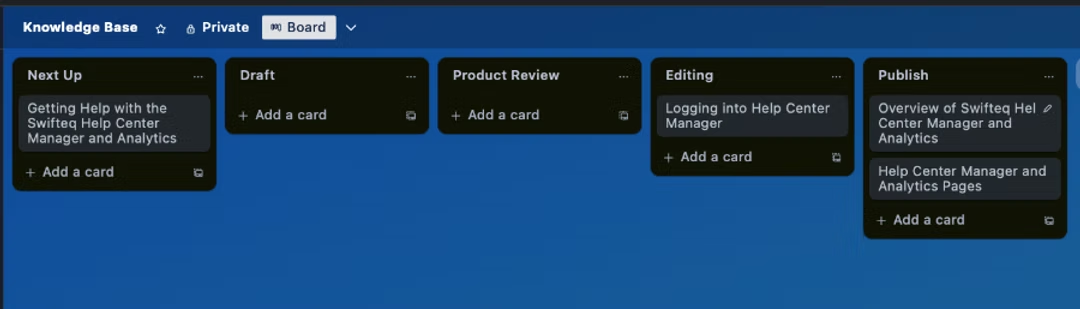
Most teams use Kanban boards to facilitate lifecycle knowledge management, track tasks, and move content pieces through different stages of the process.
Kanban boards make it easy to collaborate, identify bottlenecks, and ensure a smooth workflow.
3. Terminology
The next step is language alignment. It’s important to use the same term when describing specific functionalities, products, or actions across all of your content, especially if your internal slang is different from the terms your customers use.
Imagine you go to search engines and look for instructions on how to create a new task in your knowledge base software. There are a lot of different names for tasks – activities, assignments, initiatives – the list goes on.
If your account manager uses one term, your support team uses another, and your knowledge base features a completely different one, you’re going to confuse customers and it’s going to take longer for them to find a solution to their problem.
To streamline the user experience and make your knowledge base easier to navigate, create key features like service dictionary – internal or customer-facing – with a list of key terms and their descriptions.
This resource can serve as a reference for both customers and employees, ensuring that your language is aligned and removing the potential for miscommunication.
Remember that your knowledge base will have a search functionality with which your customers interact and they need to find their answers fast.
4. Content guidelines for your knowledge base
You’ll also need guidelines for consistent titles, styling, and formatting. This document standardizes how information is organized and which items will be covered in different article types.
For proper knowledge base organization, it’s important to choose a title format that you can keep consistent across the board. Ideally, the title should include three key elements:
- The product name (if you support multiple products in the knowledge base).
- The feature name.
- The article theme.
This format allows readers and support personnel to quickly identify which product or feature the article relates to, especially when dealing with a large number of documents.
It’s also important to stick to the ‘One Article, One Message’ rule and avoid long reads. Strive for knowledge base articles that focus on a single subject to make navigation easier.
Let’s take Apple as an example.
It has over 100 products and customer-facing troubleshooting guides. Having informative titles makes searching Apple’s knowledge base a breeze.
If your phone breaks and you look in search engines for “iPhone troubleshooting,” you can easily find the relevant guide at a glance, instead of being stuck with twenty “iPhone troubleshooting” links that don’t specify the phone model.

When content guidelines are documented, you can create templates for different article types that help your customer support team adhere to these guardrails more effectively.
How to Structure a Knowledge Base?
Now with content guidelines in place, it’s time to focus on knowledge base structure.
Your knowledge base structure is a system of organized buckets that house your existing and future content, grouped by relevant themes.
The key is to create a clean and clear structure that makes navigating your knowledge base a breeze.
If the structure isn’t logical or doesn’t make sense, readers will struggle to find information. As a result, it will slow down your operations and lead to customers bombarding your support team with queries.
There is no one-size-fits-all method to organize knowledge and typically, there would be more than one approach to take – especially for complex products.
To organize your knowledge base, group information into categories based on specific criteria and then assign any new pieces to these categories. Common criteria that most of us are familiar with include:
Internal and external resources
Distinguish between resources that are meant for internal use and those that are intended for external users, such as customers or partners.
Related department
If your knowledge base serves as an internal resource, you may want to structure it based on the different departments or teams within your organization.
This ensures that employees can easily access information relevant to their roles.
Target audience
Separate information that’s tailored for different customer groups.
For example, Spotify has knowledge hubs for artists, vendors (advertisers), and end customers; while Airbnb has sections for hosts, guests, and travel admins.

Product area
Group knowledge base articles based on the product area they cover.
Mailchimp is following this strategy for its feature-rich CRM solution that has various interdependent product areas, including automation, emails, websites, reports, integrations, and more.
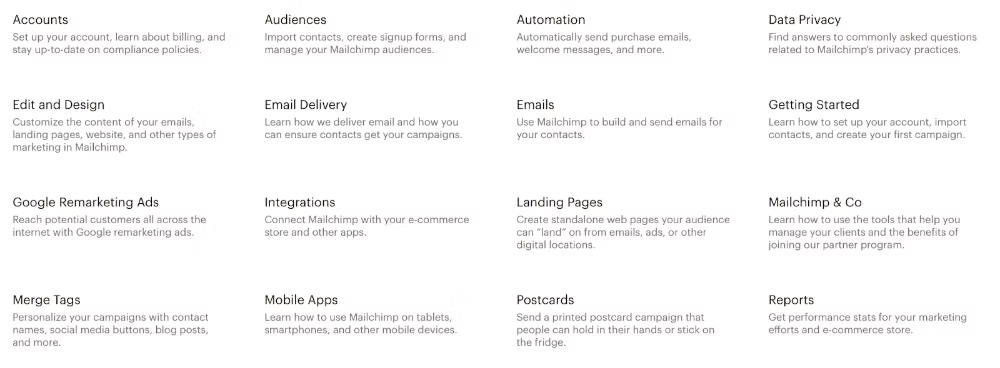
Source: Mailchimp Knowledge Base
Content topic
Organize your knowledge base into categories that cover specific topics.
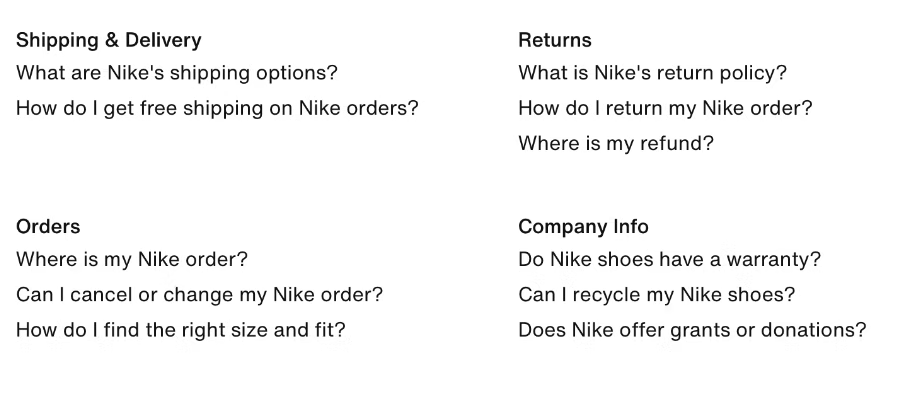
For instance, Nike, like many other ecommerce sites, has knowledge base categories for articles about shipping, delivery, orders, and more.
Hybrid structure
Large help centers typically have hybrid structures.
For example, Airbnb has four tabs in its knowledge base with information organized by the target audience – for guests, hosts, and travel admins. Articles in each tab are split into groups by product area.
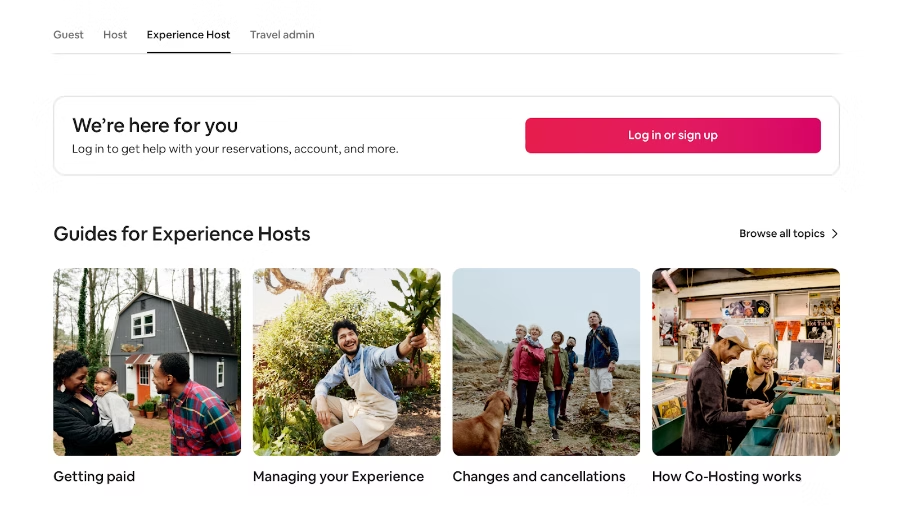
Knowledge base articles in each of these groups are then divided into sections for easy navigation.

How to Organize Knowledge Base Docs?
With guidelines in place and a defined knowledge base structure, it’s time to organize all your content into the new framework.
To effectively manage large volumes of content, knowledge teams rely on various organizational elements.
If you’re using Zendesk Guide, you’ll use elements like labels, tags, and titles, along with categories and sections.
Titles and descriptions – assuming they are brief, informative, and aligned with the article’s content – summarize the article’s theme so at a glance you can manage it without reading the entire text.
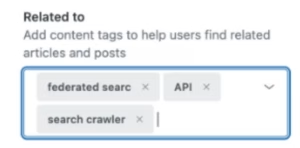
Article tags or labels allow knowledge managers to filter, group, and manage individual articles based on applied tags. Here are a few key tags to consider:
- Article type, such as troubleshooting, overview, case study, how to articles.
- Content type for media contained within the article for easy identification and retrieval, such as video, GIF, screenshot, chart.
- Article theme based on the main feature, product area, product line, or product version, covered in the article.
If all articles have proper tags, it’s easier to find and update them whenever there are changes to your troubleshooting steps or improvements released for a specific product or feature.
You can also delete articles that are outdated or no longer relevant to your customer base.
Source: Content Tags in Zendesk Guide
One of the most popular tools for managing large knowledge bases is Zendesk Guide. It offers both labels, which boost article visibility in search results, and tags, which allow you to filter and group knowledge base articles that share the same tag.
Additionally, Zendesk Guide offers a standout feature: the ability to merge tags, which is helpful when you identify duplicates.
For example, if your customer service team hasn’t aligned on terminology, you may be using both ‘analytics’ and ‘insights’ tags interchangeably for articles related to the reporting features of your product.
By merging those tags you’ll have a single one applied to all of these knowledge base articles, ensuring consistency in content organization.
Audit Knowledge Base Content
When revamping a large knowledge base, the secret to success is to declutter, reorganize, and establish a foundation for a low-maintenance knowledge hub going forward.
If you have a relatively small knowledge base with under 100-200 articles, consider managing them directly through your knowledge base software.
Schedule regular reviews to manually assess each section of your knowledge base.
It’s important to consider article titles, descriptions, and tags during this process as well as the last updated date, the number of article views, and ratings to determine which knowledge base articles may require updating or removal.
For larger knowledge hubs, auditing content can be more efficient by exporting it all into a spreadsheet.
Your help center export should include article titles and any essential information you can pull from your knowledge base platform, such as descriptions, tags, ratings, and last updated date.
We’ve built a completely free tool to export your Zendesk knowledge base — if you’d like to use it, you can get started with Help Center Export here.
Using a spreadsheet, you can evaluate each piece of content and track your plans to archive, merge, update, or leave them as is. Some teams go as far as assigning tasks directly from the spreadsheet as well.
Spreadsheets work better than managing your content directly in your knowledge base tool, but there’s an even better way for Zendesk Guide users.
Help Center Manager gives you the ability to find-and-replace text or broken links, duplicate categories and sections, automatically translate knowledge base articles, and more.

You can check out a free 14-day trial of Help Center Manager here (no credit card required).
By conducting regular audits you’ll avoid common knowledge base mistakes and you can ensure that the information you provide remains accurate, relevant, and easily accessible to your audience.
Plan for Long-term Success
Organizing a large knowledge base into a user-friendly resource requires significant effort and should not be underestimated.
You should consider a system where team members, or even customers, flag knowledge base articles requiring updates and add them to the queue for review and revision.
Taking a proactive approach ensures that your documentation remains up to date, enhancing the self-service customer experience and reducing support resolution times.
While this process may not be easy, there are tools available to assist in managing large volumes of articles and maintaining their relevance and accuracy.
Swifteq’s Help Center Apps, specifically designed for Zendesk Guide, can help streamline these tasks and make the process more efficient.
Book a free demo today to bring your Zendesk Guide content to the next level.