
Content Audit: How to Keep Your Knowledge Base and Macros Up to Date?
Anne-Marie Traas · · 11 minutes read

Maybe you have a feature listed as “coming soon” in four knowledge base articles, two or three macros, several onboarding emails. Maybe a chatbot answer, too.
Yesterday, all of them were precise and accurate. But today is not yesterday.
Because today this new feature was released.
Someone published an article that does a wonderful job explaining the ins and outs of this shiny new feature. But now the eleven other pieces of content that mention it still say the feature isn’t yet available.
Macros and internal knowledge base are often the worst for this, because only your employees see them. A customer might at least flag a stale help center article.
But a busy agent looking at a stale macro is more likely to fix it quickly in their own reply and move on, leaving the macro outdated for everyone else.
It’s unrealistic to assign someone the task of regularly reading through every piece of content. Even if that means each article is checked every 90 days, a full content audit of every article isn’t realistic. You could easily spend a full day every week just reading your own documentation.
So what should you do?
Let Tickets Tell You Which Articles Are Wrong
Your customers are more likely to encounter stale content before you do. They just aren’t likely to say, “Hey, your knowledge base is out of date.”
Instead, customer signals look like:
- A customer opening a ticket after getting an answer from an article that doesn’t match what they see in the product.
- Reopened tickets.
- Repeat contacts.
- A dip in satisfaction around a single topic but not elsewhere.
- If you’re lucky, a customer copying and pasting a line from your help center and very aggressively asking why your knowledge base is wrong.
Often, none of these signals are flagged on their own, because individual instances spread across support agents aren’t mentally seen as a pattern. They’re just one off things. So you need to build in an easy way for them to flag each individual instance, without slowing them down.
One suggestion:
- Add a tag for wrong content. A wrong price, missing step, or a feature that has changed. Anything inaccurate, no matter how small.
- Review the tag weekly.
- Fix the content or assign someone to own the job of fixing content.
Keep the tag to a single click. If it takes more effort than editing the macro in place, agents will edit it in place and never flag that it needs fixing.
Analytics can help here. Tools like Swifteq’s Help Center Analytics show the percentage of article views that end up in a ticket, plus the reason visitors give when they mark an article unhelpful. An article that’s read often and still followed by a ticket is worth reviewing first.

Events That Should Trigger a Review
Knowledge base management often runs on a calendar. I typically suggest a 90 day review period.
A simple Trello board can do the trick. Export your help center, then give every article a card in Trello and mark it “Done” the day it’s published.
Add a workflow that clones every card 90 days after it’s marked “Done” and adds it to the beginning of the pipeline with instructions to review it for accuracy.
I’ve used this process with a number of clients, and it works fine for stable products that aren’t changing quickly, with a small ticket volume, and a point person who can own this process.
But it doesn’t work for large article counts or fast moving products. It’s a reasonable place to start, and it’s better than nothing, but it doesn’t catch things like when a new feature is launched.
If an article goes stale 30 days into its quarterly cycle, you certainly don’t want it sitting there incorrect for another 60 days. You can build on this process by considering the four kinds of changes that should trigger a review:
| Event type | Search for | Where it hides |
|---|---|---|
| Launch | “Coming soon,” “beta/alpha,” “not yet available,” “rolling out,” “early access” | Help center articles, onboarding emails, macros, chatbot answers |
| Pricing change | Old plan names, old prices, old plan limits such as ‘up to 5 users’ | Billing macros, chatbot answers, upgrade emails, internal pricing cheat sheets, pricing explanations in the knowledge base, pricing pages on the marketing page and in the product |
| Policy change | Refund windows, response times, data retention periods, support hours | Refund macros, autoresponders, terms-linked knowledge articles, possibly chatbot answers |
| Deprecation | Old feature names, old menu paths, old integration names, old screenshots | How-to articles, step-by-step macros, internal troubleshooting docs, possibly old blog posts |
Pay attention to that last column. Each item spans a multitude of places where that information may live. A pricing change is most likely the largest hitter here, as it has the potential to affect every piece of documentation you own.
If you’re on Zendesk, Swifteq’s Help Center Manager is a huge help here. It includes easy find-and-replace across your entire Zendesk help center, so it’s really easy to search things like old plan names or old pricing and update it wherever needed.

Get the news before it ships
Support also tends to be a bit of a “last to know” department, at least for things that are happening within the company. CX teams tend to hear about changes coming in broad terms, but they often aren’t provided with details until after it ships.
If you’re a support leader, work with other teams to build a process to get this information up front.
In a perfect world, your support team should be part of the decision-making process for feature development, since they have the most insight into how the customers might perceive the changes.
That’s not always possible, but that doesn’t mean support needs to be left in the dark.
Work with your product team to have them inform you about changes before each release. It doesn’t need to mean more meetings. Just a quick document with some screenshots of the details of the change.
Use that info to flag incorrect content ahead of time. Most knowledge base systems will allow you to draft new content ahead of time, and you can simply publish the changes on release day.
Search for Contradictions
Once you know what is changing, you need to find every place where something contradicts it. That’s a knowledge base audit, just a targeted one. And it’s basically a glorified search and replace.
Start with the manual version. It works, and you can do it today.
- Export the content of your articles, macros, chatbot, and automated emails to a spreadsheet.
- Search for the old wording as discussed in the table above.
- Log each hit and where it lives.
- Fix everything that’s wrong.
I mentioned it above, but if you’re on Zendesk, Help Center Manager is really a gamechanger here because it includes full-text search, find and replace across your whole help center, and export to CSV or Word.
Macro Export does a similar job of exporting every macro with its title, description, last updated time, and actions. It even includes dynamic content for every language your team uses.
Where keyword search stops
Keyword search only finds the words you thought of. It might not find variations of common phrases, such as “we’re working on it,” “it’s on the roadmap,” or “next quarter” if you don’t think to search for it.
That’s where AI can help.
Keep a simple change log in a CSV, and have the AI run your knowledge audit against it. Each row is one change.
| Date added | What changed | Old wording | What’s true | Checked |
|---|---|---|---|---|
| 2026-09-14 | Scheduled exports launched | Coming soon | Scheduled exports are available on all plans |
The above row is a basic example. It’s the one-line summary you take from your product brief before a release goes out.
- Log every change as a row.
- Connect the CSV to your AI.
- Give the AI access to your content. If your AI tool can connect to your help desk, connect it. If not, export all of your content into a single folder for it to review.
- Build a skill. Write the instructions once: read the CSV, take every row where the “checked” column is blank, and search all your content for anything that contradicts the current truth. List each contradiction, linking to the file it lives in, and fill in the date the row was checked.
- Review the flagged output.
- Run the skill weekly.
Treat the results as a shortlist. The AI will flag things that need flagging, but a human still needs to decide what is incorrect and how to update it.
Reading 50 flagged sentences is still more efficient than reading through the details of 500 articles.
And because it’s a skill, it runs the analysis the same way every time, and you can update it as you learn. If it misses a phrase like “on the roadmap” you can add that explicitly to the instructions.
Prioritizing Your Content Audit When a Lot Is Stale
The first time you run a content audit across articles, macros, and emails, you can easily end up with hundreds of hits for stale content.
You’re not going to fix them in whatever random order they came back.
You need to rank them by priority and start with the most important.
The 80/20 rule is helpful here: 80% of your ticket volume probably comes from about 20% of the possible topics. A wrong answer on a topic that drives a lot of contacts costs far more than a wrong answer on a topic that rarely comes up.
So, check your own reporting to see which topics are generating the most conversation, and layer in Help Center Analytics to get an even clearer view.
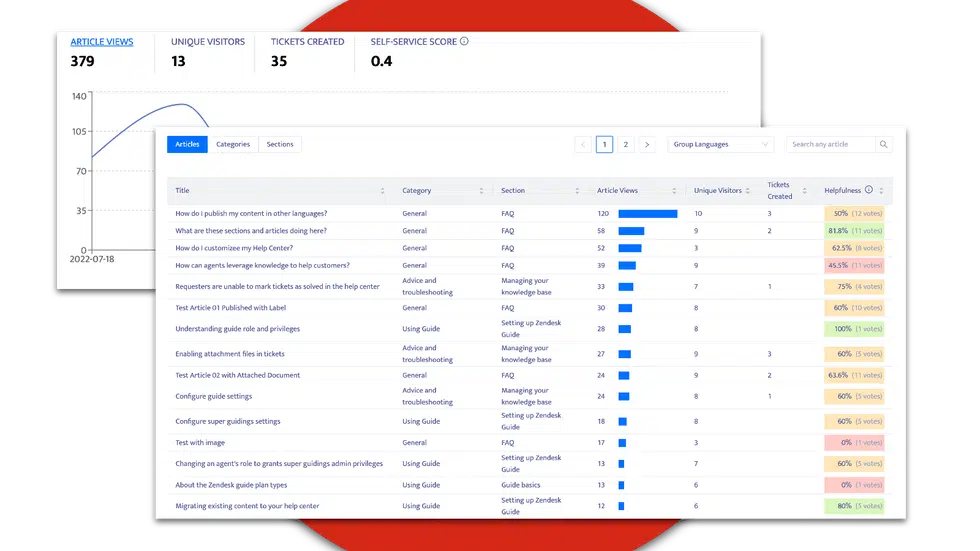
This reporting will also show you missing answers in the form of topics where there are frequent contacts made with absolutely no documentation around it.
Rank every hit from your audit with three questions, in this order.
- How many contacts were made for that topic?
- How wrong is the information around the topic? Is it a wrong price, a statement of a longer refund window than you give, or some other promise, or is it simply a wording change on a menu path?
- Who sees the incorrect information? A macro every agent uses daily beats an article that gets 10 visits a month.
Then group them into tiers:
| Tier | What’s in it | Action |
|---|---|---|
| 1 | Wrong price, policy, or promise on a high-contact topic | Fix it this week |
| 2 | Wrong steps or feature names on a high-contact topic | Fix it this month |
| 3 | Old screenshots, small wording issues | Batch and fix as you go |
| 4 | Content for features that no longer exist and nobody reads | Archive |
Fix the top handful first, then run the search again. The list gets shorter faster than you’d expect.
And after you do it the first time, it should be easy to maintain this if you stick to a weekly cadence.
Build Content That’s Cheaper to Keep Right
Some knowledge management best practices make the next audit easier or harder. It’s worth keeping some of them in mind as you make updates.
Word repeat information the same way every time
Some facts show up in a lot of places. Which plans include a feature, what a refund window is, when support is open. Word each one identically everywhere it appears.
This way, when that information changes, you search for one phrase and edit every hit, instead of guessing at all the ways different writers phrased it.
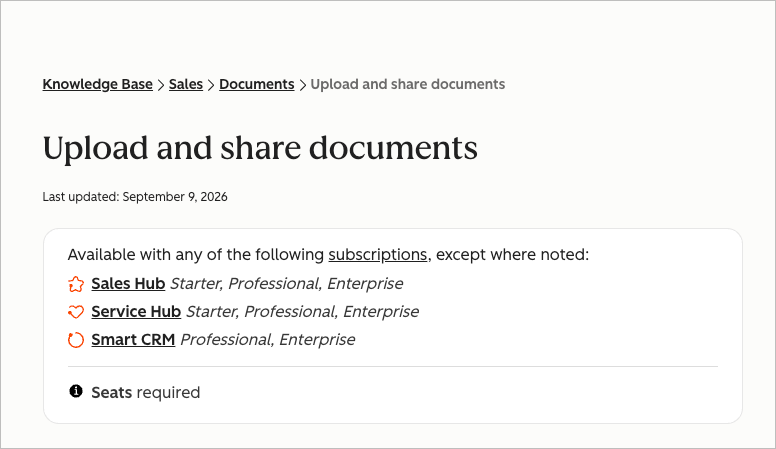
Source: HubSpot
One thing I appreciate about HubSpot’s help center is the inclusion of who each of their articles are for.
At the top of every article, a call out says which plan that feature is available on, as in the above screenshot.
It helps prevent users from attempting to follow a set of instructions for a feature they don’t have access to. It works for the reader because it’s consistent, in both wording and existence.
After reading a few articles, the reader starts to recognize this exists, and they can use this callout at the start of a search to see if they even have access to the feature.
Use animated GIFs instead of a screenshot (or nothing at all)
If you want inclusive documentation, screenshots are incredibly useful.
You have customers who may not speak the language well enough to read an article, may be more visual learners, or might just not take the time to really slow down and absorb the written information.
Unfortunately, screenshots also tend to be one of the first things to go stale, and they’re time consuming to update. On top of that, including a screenshot on every step becomes confusing.
Some knowledge managers opt to drop visuals entirely, but that ostracizes the people who aren’t going to read. Some opt to include video (with audio), because a video at least adds enough context that it can still serve a purpose even if the platform visually changes.
But who really wants to watch a five minute video when they’re just trying to do something quickly? (And what if they’re on the train and forgot their headphones…they certainly can’t listen).
Personally, I recommend using animated GIFs.
Yes, they are still a bit of a pain to update, but arguably less of a pain than a screenshot.
They show more context to customers in a single flow, like a video, but they don’t include audio, making them easier to create and consume. They also don’t require the hosting parameters that video requires.
Start Your First Content Audit This Week
You don’t need the whole setup to get value from this right away. If you know some of your knowledge base and macro content is stale, here’s what you can do this week:
- Search your articles and macros for “coming soon” and other adjacent terms.
- Add a one-click tag for wrong content.
- Ask your product team to start briefing you before each release.
- Start a change log CSV to track changes to your knowledge base.
If you’re on Zendesk, Swifteq has tools to help with several of these steps. Help Center Manager handles the searching and bulk fixing, Export Macros exports your macros for auditing, and Help Center Analytics shows which articles are followed by tickets.
Keeping your knowledge base current doesn’t have to mean re-reading every article. If you’d like to see how Help Center Manager fits into this, start a free trial or ask for a demo.